AWS Subscription & Billing
If you subscribed through AWS Marketplace, billing, invoicing, and subscription management are handled by AWS, not by AI Data Foundry. This page explains what you can check directly in the app, and what you need to go to AWS Marketplace for.
Check Your Subscription Status
You don't need to leave the app to check your current subscription and credit status.
- Project sidebar — Once inside a project, the top of the left sidebar shows the credits used in the current billing cycle as a bar, e.g.
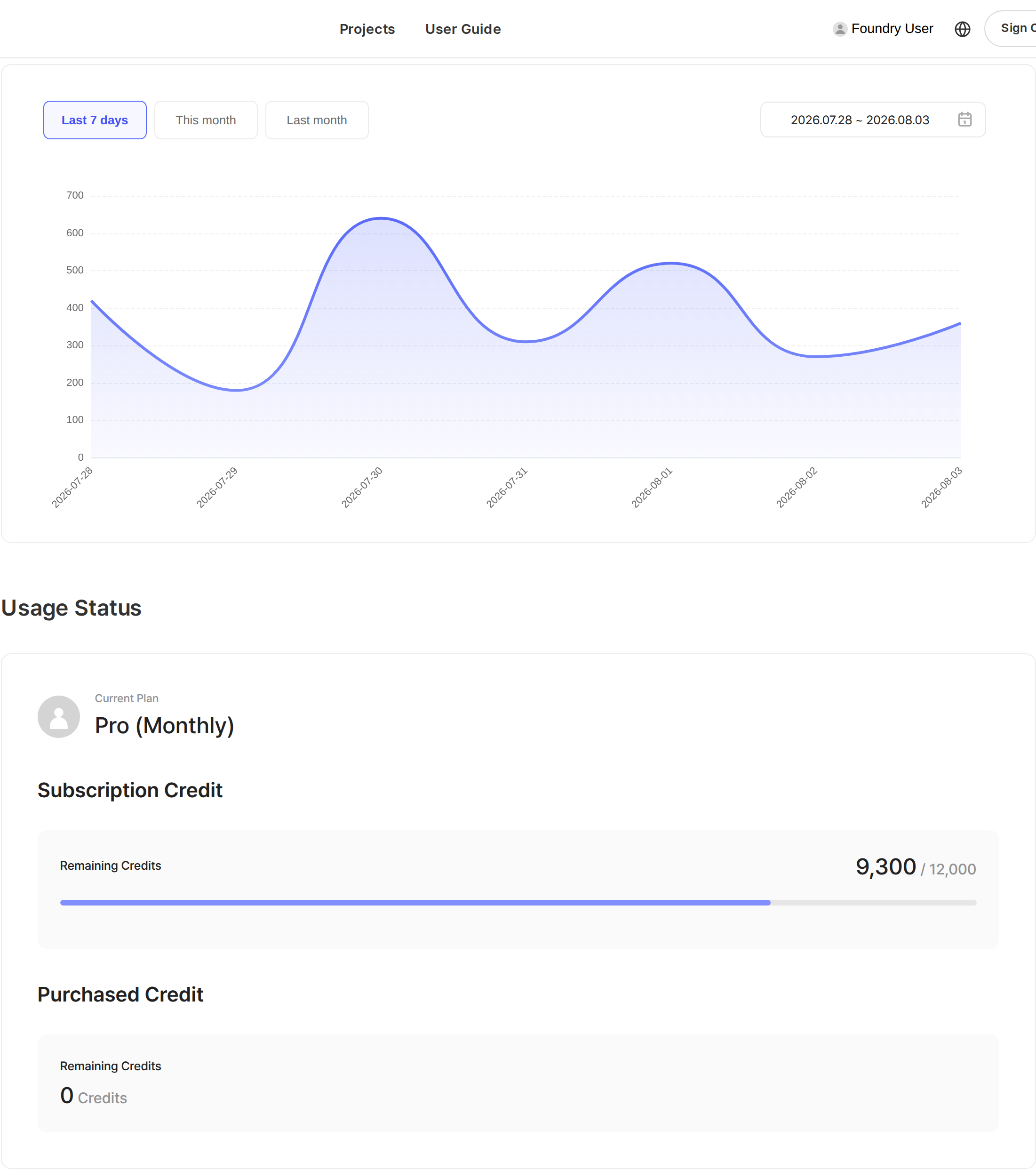
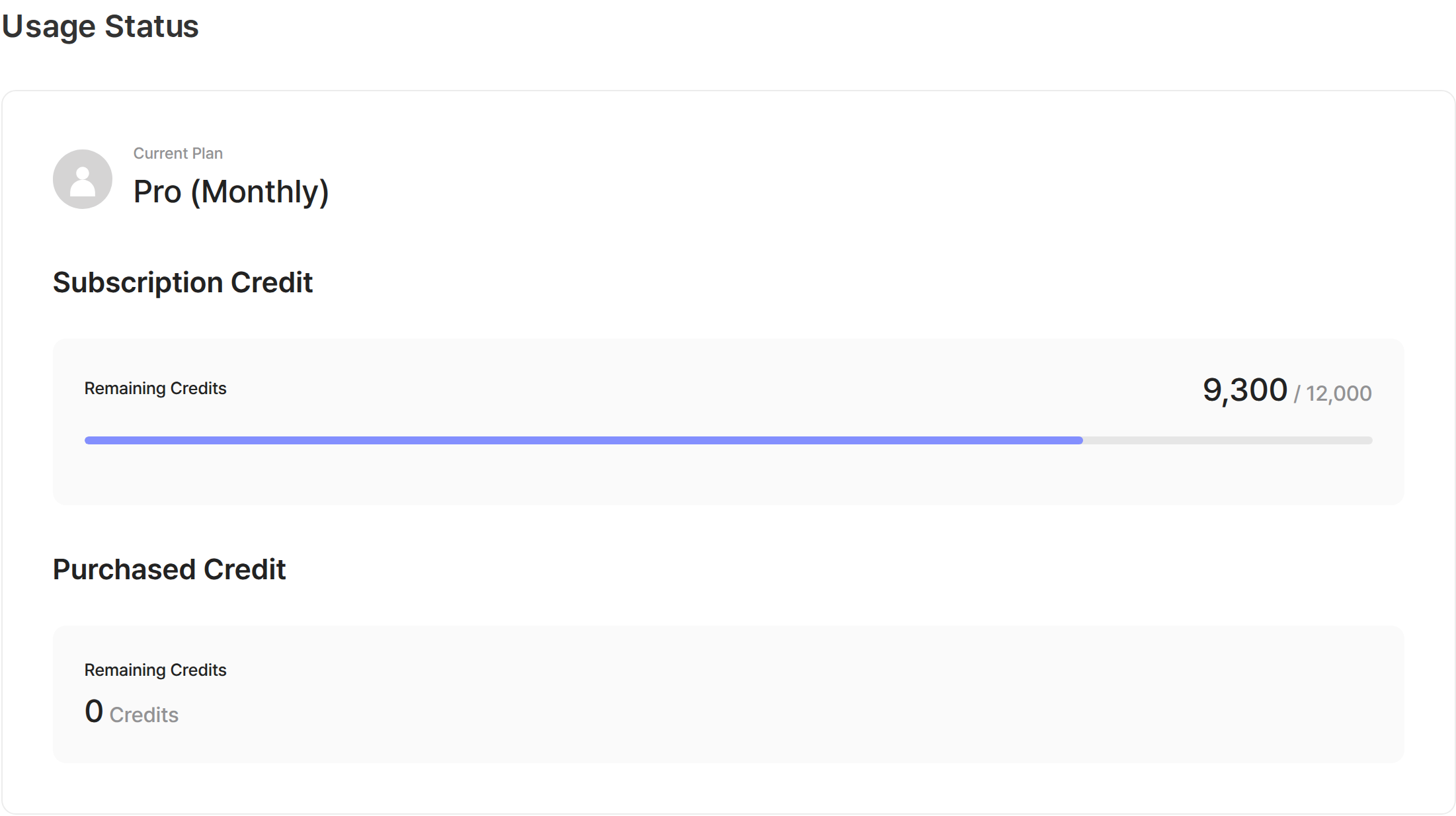
234 / 300. - Account > Usage Status (from the profile menu in the top right) — The Usage Status section shows your current plan name and the remaining and total amount of your subscription credits. The Credit Usage section shows a chart of your credit consumption over the last 7 days, this month, last month, or a custom range.
Renewal and expiration dates are not shown in the app. AWS Marketplace owns your subscription term and billing schedule, so check them in your AWS Marketplace subscriptions.
Accounts subscribed through AWS Marketplace don't see a self-service "Change Plan" button on this screen — plan changes are made through AWS Marketplace instead, as described in Change or Cancel Your Subscription below. You'll see these instead:
- Account > Usage Status — A Manage subscription in AWS Marketplace link sits where the Change Plan button would be. It opens your AWS Marketplace subscriptions in a new tab.
- Account > Payment History — A notice above the list reads "Payments and invoices are managed in AWS Marketplace." with the same link. There is no in-app flow for adding a payment method or downloading receipts.
- Account > Delete Account — If you have an active AWS Marketplace subscription, a warning appears at the top of the screen. It does not block deletion, but deleting your account does not stop AWS billing, so cancel the subscription in AWS Marketplace first.
Change or Cancel Your Subscription
Changing your subscription product or canceling it is managed entirely through AWS Marketplace. There's no separate button in the app for this — your subscription is tied to billing and contract terms in AWS Marketplace, so canceling from within the app wouldn't actually stop AWS-side charges. To make sure future charges stop, you need to cancel directly in AWS Marketplace.
To change or cancel your subscription, find this product on the Your Marketplace Software page in the AWS Marketplace console. It lists the software you're currently subscribed to under the AWS account you're signed in with.
Billing & Payment History
Your subscription fee is billed through AWS Marketplace, and the actual charges appear on your AWS account's bill. The Account > Payment History screen in the app only covers payments made through our own payment method, so charges through AWS Marketplace won't appear there.
Credits
The credits included in your subscription are applied automatically based on AWS Marketplace subscription events (new subscription, renewal, etc.). How many credits each plan includes can vary with product configuration, so this page doesn't list specific amounts — check your remaining credits in the sidebar credit gauge or the Account > Usage Status screen described in Check Your Subscription Status above.
Refunds
Refunds for AWS Marketplace subscriptions follow AWS's own policy and process, separate from the self-service refund process described in the Refund Policy page.
- If you cancel a public (non-private) offer subscription within 48 hours of starting it, AWS Marketplace automatically issues a full refund.
- For any other refund, you can request it directly from us as the seller, or through AWS Support. If you ask AWS for a refund, AWS will direct you to our support contact.
If you need support, please reach out through our customer support page.
Next Steps
- FAQ →: Find answers to other common questions.