Export Results
Result is the final stage: viewing and exporting data once workflow processing is fully complete. This page explains what each item in the result list means and how to export results.
Result screen
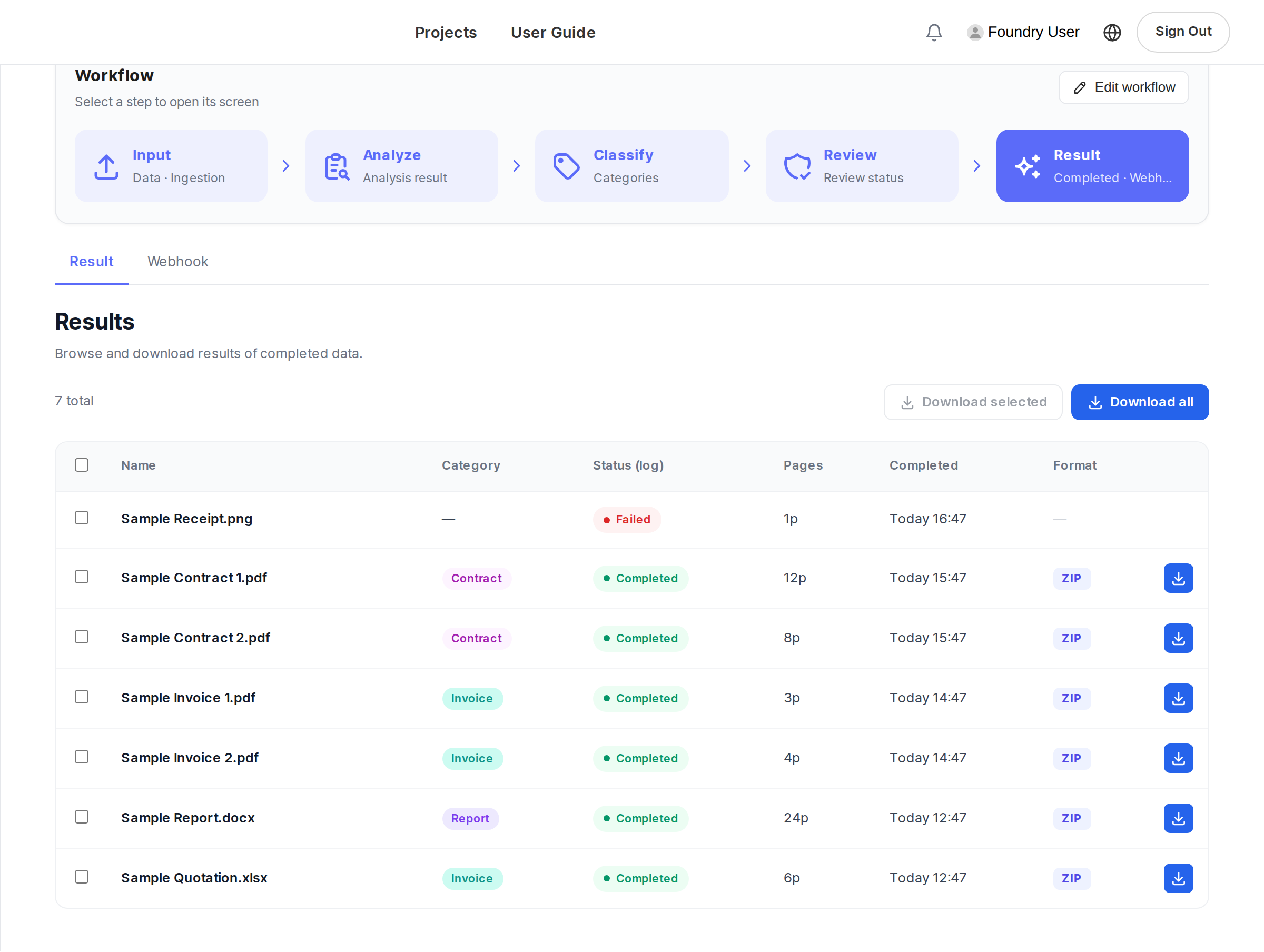
Select Workflows in the left sidebar, then click Result in the stage bar at the top.
If there is no completed data yet, you'll see an empty screen with just the message "No completed data yet".
Result list
Data that has finished processing appears as a list. A select-all checkbox comes first, and a download button comes last.
| Item | Description |
|---|---|
| Name | The name of the completed file |
| Category | The category assigned during the Classify stage |
| Status (log) | Shows the current processing status |
| Pages | Total number of pages in the document |
| Completed | When workflow processing finished |
| Format | The result file formats available for export |
Exporting
There are two ways to get your results.
Direct download — Select files in the list and click Download. You can select multiple files at once.
Automatic delivery via webhooks — To deliver processing results to an external system automatically, use the Webhooks screen in the left sidebar.
- Register a subscription with the New webhook button, and check registered webhooks and actual delivery history separately under the Subscriptions / Delivery History tabs.
- Narrow down delivery history with the All statuses filter and Newest first sort.
Once a webhook subscription is registered, results are delivered to the URL you specify every time the workflow produces a result.
The format and structure of result files depend on the blocks included in the workflow. See Create a Workflow for how blocks are connected and configured.
Next Step
- Back to Workflow Overview →: Revisit the full pipeline flow from input to result.