Review Documents
Review is where a person checks and corrects data that has already been classified and analyzed. This page explains how to check review status and what each item in the list means.
Review screen
Select Workflows in the left sidebar, then click Review in the stage bar at the top.
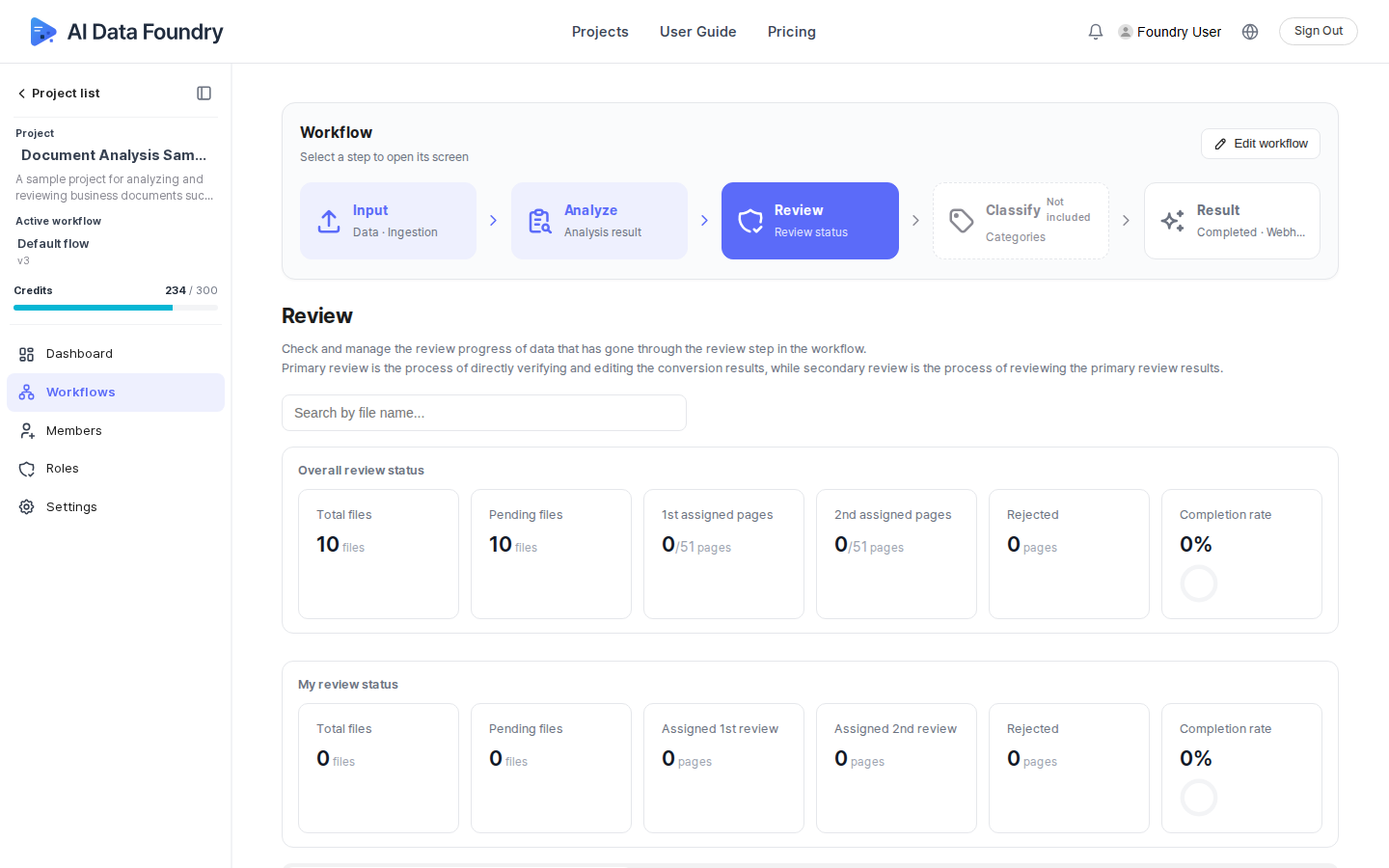
Review status
Above the list are two status cards.
- Overall review status — total review files / pending files / 1st & 2nd assigned pages / rejected / completion rate for the whole project
- My review status — review files / pending files / assigned 1st & 2nd reviews / rejected / completion rate for the signed-in account
The same summary is also available in the Review card at the bottom of the project Dashboard (review files / pending review / review completion rate).
Review list
Files under review appear as a list. Use the filter tabs — All / First Review / Second Review — to narrow the scope, and click an item heading to sort by that item.
| Item | Description |
|---|---|
| Name | The name of the file under review |
| Category | The category assigned during the Classify stage |
| Progress states | The file's current review status |
| Pages (My / Total) | Pages assigned to the signed-in account / total pages in the document |
| Progress | Percentage of review completed |
| 1st Reviewer | The person assigned to the first review |
| 2nd Reviewer | The person assigned to the second review |
| Last updated | The date the review content was last changed |
Selecting a file opens that file's review screen.
Checklist
The dashboard's Checklist includes a Run review (optional) item where you can confirm whether the active workflow has a Review block connected, whether the workflow has run, whether there are files pending review, and whether reviewers have been assigned.
Review is an optional stage. If a workflow doesn't include a Review block, the analysis (or classification) results skip review and move straight to Result.
Next Step
- Export Results →: How to check and export data that has finished review.