Email (IMAP) Ingestion
The email ingestion source pulls attachments from emails received in your mailbox into your AI Data Foundry project.
IMAP is the standard way for external programs to read a mailbox, supported by corporate mail servers and most mail services including Gmail.
This document covers only what is specific to the email source.
For behavior common to all sources — ingestion mechanics, automatic schedules, and job history — see the Ingestion Overview.
Prerequisites
To connect an email source, you need the following.
| Item | Description |
|---|---|
| IMAP Host | Your mail service's IMAP server address (e.g. imap.example.com) |
| Email (username) | The account to sign in with On most services this is the full email address |
| Password | The account password, or an app password issued by the service |
The ingestion source only downloads attachments. It never deletes messages or changes their read status.
We recommend a dedicated inbox
Rather than connecting a personal inbox, create a dedicated mail account (or mailbox) for ingestion and send documents to that address.
This keeps the collection scope clear and prevents attachments from personal mail from unintentionally entering the project.
Example: connecting Gmail
Gmail does not allow IMAP sign-in with your regular password; you must generate an App Password.
- Enable 2-Step Verification on your Google account. (App passwords are only available when 2-Step Verification is on.)
- Go to Google Account → Security → App passwords and create a new app password.
- Copy the generated 16-character app password. (Enter it without spaces.)
Use the following values when connecting.
| Field | Value |
|---|---|
| IMAP Host | imap.gmail.com |
| Email (username) | Your full Gmail address (e.g. you@gmail.com) |
| Password | The 16-character app password |
| Use TLS (recommended) | Checked (port 993) |
On managed Google Workspace accounts, your administrator may have disabled IMAP or app passwords.
If sign-in fails, contact your organization's administrator.
Connecting a corporate mail server
For an in-house mail server, ask your mail server administrator for the IMAP host address and port (typically TLS on 993).
Use the mail account's regular sign-in credentials.
Connecting an Email Source
From Connecting a Source, select Email (IMAP) as the source type and fill in the fields below.
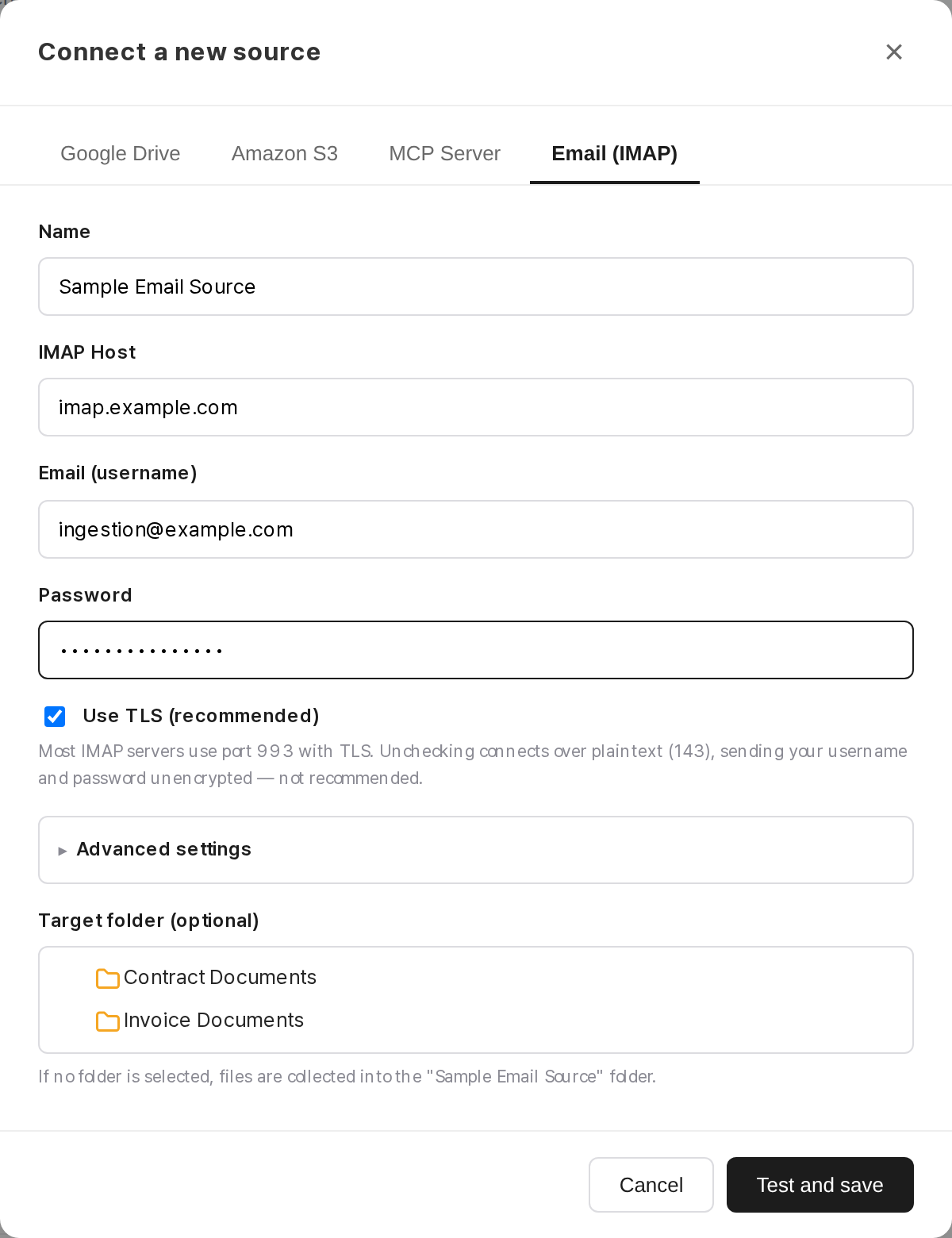
| Field | Required | Description |
|---|---|---|
| Name | Yes | A name to identify the source (e.g. "Company inbox attachments") |
| IMAP Host | Yes | IMAP server address (e.g. imap.gmail.com) |
| Email (username) | Yes | Sign-in account (usually the full email address) |
| Password | Yes | Account password or app password |
| Use TLS (recommended) | — | Checked by default. Most IMAP servers use TLS (port 993) Unchecking connects over plaintext (143), which is not recommended |
Advanced settings
Expand Advanced settings at the bottom of the dialog to adjust the following.
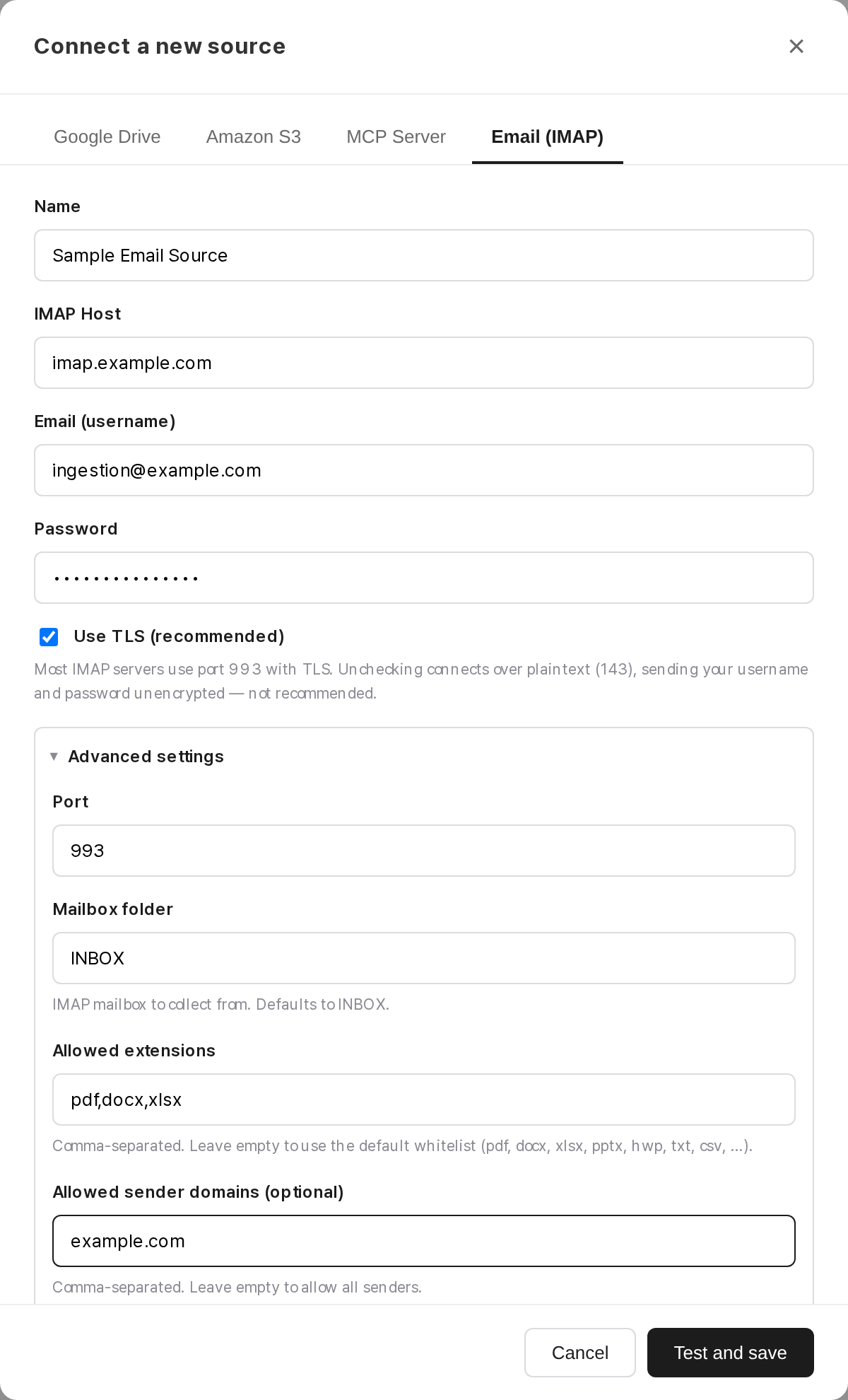
| Field | Default | Description |
|---|---|---|
| Port | 993 | Automatically set to 993/143 based on the TLS checkbox Only change it for servers on non-standard ports |
| Mailbox folder | INBOX |
The mailbox to collect from You can specify another mailbox (e.g. Archive/Reports) |
| Allowed extensions | Default whitelist | Comma-separated (see What gets collected) |
| Allowed sender domains (optional) | Allow all | Comma-separated (e.g. example.com, partner.co.kr)When set, only attachments from mail sent by those domains are collected |
Click Test & Save to automatically verify that the entered credentials can sign in to the IMAP server and access the specified mailbox. The source is registered on success.
Each source collects from a single mailbox.
To collect from multiple mailboxes, register one source per mailbox.
What Gets Collected
Ingestion targets files attached to emails.
Message bodies (text) are not collected, and inline images embedded in the body — such as signature images — are also excluded.
The following limits apply to attachments. Attachments outside the limits are not collected.
| Limit | Description |
|---|---|
| Allowed extensions | By default, only pdf docx xlsx pptx hwp hwpx txt csv png jpg jpeg files are collectedAdjust via Allowed extensions in Advanced settings |
| No archives | Archive files such as zip rar 7z are not collectedTo ingest documents inside an archive, extract them and send as individual attachments |
| Size limit | Each attachment can be up to 100MB |
FAQ
For common questions (missing files, deleting a source, etc.), see the Ingestion Overview.
Q. Connecting the source fails
- Authentication failed: The username is usually the full email address.
For services that require an app password, such as Gmail, make sure you entered the app password, not your regular password. - Connection timeout: Verify the IMAP host address and port, and — for in-house servers — that the firewall allows the connection.
- Mailbox access failed: Check that the mailbox path in Advanced settings actually exists. (Default:
INBOX)
Q. Does the first run also collect attachments from mail received before connecting?
Yes. On first connection, ingestion starts from the oldest mail in the mailbox and works forward.
Large mailboxes are processed across multiple runs, so it can take a while for everything to come in.
After that, only newly arrived mail is collected.
Q. An attachment I emailed was not collected
Check the skip reason for the file in the job details.
Common causes:
- Extension not on the allowed list → add it to Allowed extensions in Advanced settings
- Archive file → extract and re-send as individual attachments
- Sender domain not allowed → add the sender's domain to the allowed list
- Inline (embedded) image → send the file as an attachment
Q. Can message bodies be collected too?
No. The email source only collects attachments.
To ingest body content, save it as a document file (such as PDF) and attach it.
Q. Can attachments that were skipped earlier still be collected later?
Yes — change the setting that caused them to be skipped.
For example, if an attachment was skipped because pptx was not on the allowed list, adding pptx to Allowed extensions in Advanced settings makes the next run find it in past mail and collect it.
The same goes for attachments skipped by allowed sender domains.
Files that were already collected are not collected again.
To re-collect everything from scratch without changing these settings, delete the source and register it again.
Q. If I delete mail from the inbox, are already-ingested files removed?
No. Ingested files are stored as copies in your project, so deleting the original mail does not affect them.